Gemini Prompts to Enhance Photo: If you have a photo that looks dull, blurry, or old, you can still turn it into a sharp and realistic image. Many pictures lose their color, clarity, and fine details over time, but Gemini AI can help you restore them. With the right prompts, this tool can upgrade almost any low-quality image in a few seconds. Want to know the full details?
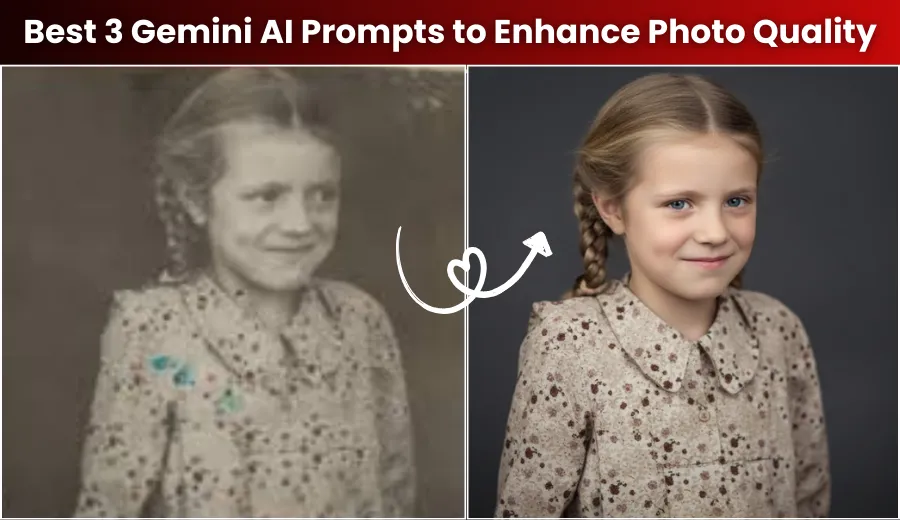
How Gemini AI Improves Your Photos
Gemini AI works based on instructions, also known as prompts. When you provide clear and detailed prompts, the tool understands exactly what you want. These prompts help the AI improve three major areas of a photo:
- Restoring hidden or blurry details
- Fixing dull or faded colors
- Adding natural realism that looks professionally captured
To use these prompts, you upload your photo inside Gemini chat and paste the selected prompt below it. The AI will then enhance your specific image.
Prompt 1: Ultra-Sharp Detail Restorer
This prompt is best for photos that look blurry, soft, or unclear. It guides Gemini AI to focus on fine details and natural textures.
Goal: Remove blur, sharpen features, and restore realistic textures.
Prompt
Enhance the attached low-quality or blurry photograph into an ultra-realistic, high-definition image. Apply a realism filter that simulates a professional 8K cinema camera look. Sharpen all visible details, especially areas such as the subject’s face, hair, and clothing. Add natural textures, including subtle skin pores, individual fabric threads, and crisp hair strands, to eliminate any remaining blur. Correct the lighting to be soft and balanced, reducing harsh shadows or overexposed spots. The final result should appear detailed, clean, and authentic.
Prompt 2: Vibrant Color and Lighting Refresher
Use this prompt when your photo looks dull, washed out, or unevenly lit. It improves both color and lighting to create a richer look.
Goal: Improve color accuracy, boost vibrancy, and add professional lighting.
Prompt
Take the attached low-quality photograph and enhance its color accuracy and lighting. Apply a realism filter with a cinematic color grade that creates depth without oversaturation. Boost the vibrancy of dull areas, such as green leaves, blue skies, or red objects, and ensure skin tones stay warm and natural. Add a soft dramatic lighting effect, such as a rim light or a warm glow, to separate the subject from the background. Remove color noise and any digital artifacts from the original photo. The final image should look vivid, clean, and professionally lit.
Prompt 3: Old Photo Modernization
This prompt is ideal for very old, damaged, or faded photographs. It focuses on complete restoration.
Goal: Remove damage, restore clarity, and create a modern-quality image.
Prompt
Transform the attached old or low-quality photo into a clean, ultra-realistic digital image. Remove all signs of age, including dust spots, scratches, creases, and faded edges, while keeping the background uniform. Apply a realism filter that simulates modern DSLR quality. Restore missing details and textures so the entire image looks crisp and refined. Adjust contrast and dynamic range to bring back deep blacks and bright whites. The final image should maintain the original subject but appear newly captured with modern clarity.
Final Tip for Best Results
To get the strongest output from Gemini AI, follow a simple process. First, upload your image to the chat. Next, copy and paste one of the detailed prompts under your photo. If needed, add one extra instruction at the end, such as asking the AI to reduce red-eye or smooth a specific area. Clear prompting ensures Gemini AI delivers a high-quality, realistic upgrade to any old or low-resolution photograph.
